Last updated: June 29, 2026
Browser PDF editor security: device, upload, download, and cloud sync risks
Security is not only about whether a page runs in a browser. A safe PDF workflow also depends on server processing boundaries, browser extensions, device trust, downloads, cloud sync, and where the final file is sent.
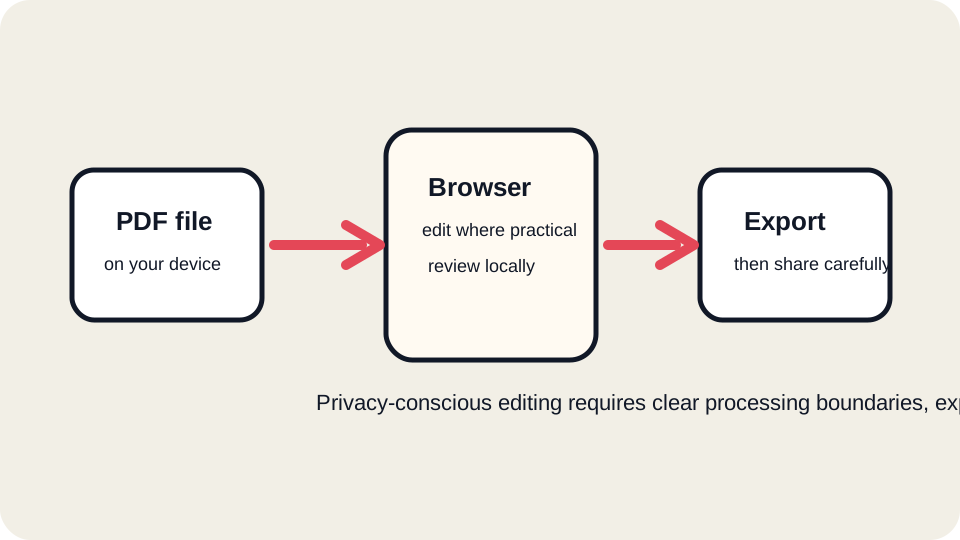
Main risk points
- Upload boundary: some editing products, including JUST FREE PDF current workflow, may upload documents for analysis or export.
- Extensions: browser add-ons can sometimes read page content or modify downloads.
- Shared devices: downloads, recent files, and browser history may remain visible.
- Cloud sync: saved PDFs can sync to Drive, iCloud, OneDrive, Dropbox, or managed-device backups.
- Recipient rules: portals and employers may require approved systems.
Safer checklist
- Use a trusted device and private network.
- Disable unnecessary extensions for sensitive files.
- Read the product data-flow page before uploading confidential PDFs.
- Download and review the export in another viewer.
- Delete local copies you no longer need and empty trash if appropriate.
When to choose an offline workflow
Choose a trusted offline or enterprise-approved tool for legal files, bank statements, identity documents, medical records, tax records, immigration files, regulated client data, and anything covered by workplace policy.